Want to save hours on your next pitch? Knowing How to Create Slides Using AI Tools Step-by-Step transforms tedious formatting into a rapid, streamlined, and highly effective workflow.
This comprehensive guide walks you through the entire process of leveraging artificial intelligence for slide design. We cover actionable steps, compare top platforms like Gamma, Canva, and Prezent, share expert tips, and highlight common mistakes to help you build professional presentations effortlessly while maximizing your productivity.
The Evolution of Presentation Design
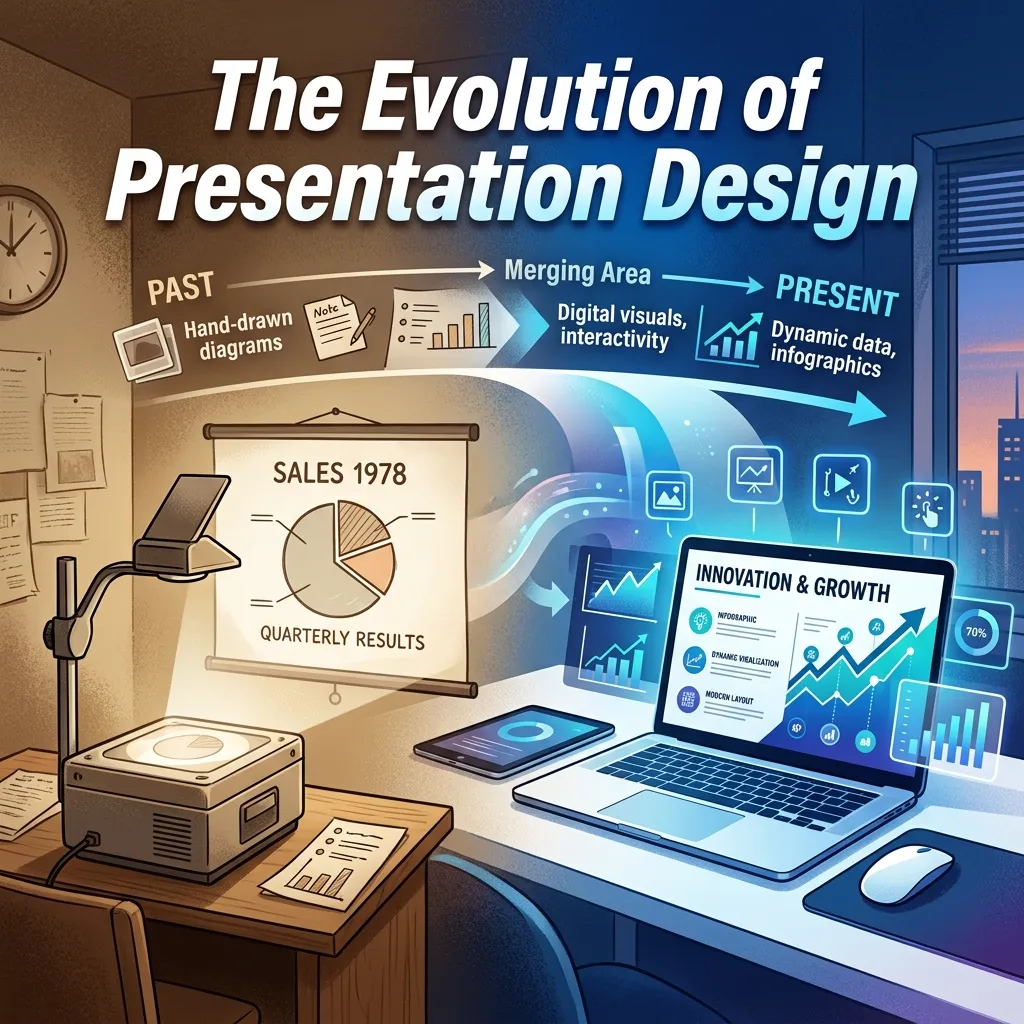
Building a professional presentation used to require hours of manual formatting, content writing, and image sourcing. You had to align text boxes perfectly, ensure brand colors matched, and spend significant time adjusting chart layouts. The introduction of artificial intelligence has entirely disrupted this traditional workflow.
Professionals across sales, marketing, and executive leadership now rely on automated solutions to handle the heavy lifting. By utilizing a dedicated AI presentation maker, you shift your focus from formatting to storytelling. You no longer need to start with a blank canvas. Instead, you guide the software to generate outlines, source visuals, and structure your narrative.
This shift not only accelerates output but also maintains high-quality standards. Teams can produce compelling decks in a fraction of the time, allowing them to prepare better for the actual delivery of the presentation. Understanding the mechanics of these platforms is essential for anyone looking to scale their output without sacrificing professionalism.
The Ultimate Guide: How to Create Slides Using AI Tools Step-by-Step
Navigating a new technology requires a clear, structured approach. When you learn How to Create Slides Using AI Tools Step-by-Step, you unlock a repeatable system that works across almost any platform on the market. Follow these core phases to build your next deck.
Step 1: Open Your Chosen Platform
The first phase involves selecting and opening the right software for your specific needs. Not all platforms operate the same way. Some function as standalone web applications, while others integrate directly into your existing software ecosystem.
If you prefer working within Microsoft’s ecosystem, you might launch an AI PowerPoint generator directly from your ribbon. This allows you to stay within a familiar interface while accessing advanced generation capabilities. For web-based users, navigating to a standalone application requires creating an account and selecting a new project.
Take a moment to define your goals before opening the application. Are you building a data-heavy quarterly report, or a highly visual startup pitch? Your objective dictates the platform you should launch. Once logged in, locate the primary prompt bar or the “Create with AI” button. This is your starting point. Ensure you have your brand assets, such as logos and color hex codes, readily available if the platform supports brand kits.
Step 2: Craft the Perfect Prompt
Your output is only as good as your input. Crafting a precise, detailed prompt is the most critical step in the entire process. A vague request yields a generic, unusable presentation. A highly structured prompt generates a draft that requires minimal editing.
When you type your request, include specific details about your audience, your objective, the tone of voice, and the desired slide count. For example, instead of typing “Make a presentation about marketing,” try “Create a 10-slide presentation for enterprise executives detailing Q4 marketing performance, focusing on lead generation metrics and budget efficiency, using a confident and analytical tone.”
Many platforms allow you to upload source documents. If you have a whitepaper, a meeting transcript, or an outline, feed this text into the system. This ensures the AI uses your factual data rather than relying on its internal training data. Structure your prompt to request specific elements like bar charts, timeline layouts, or bold headers. The more context you provide, the better the software understands your vision.
Step 3: Refine and Edit the Output
No artificial intelligence produces a perfect final product on the first try. The generated draft serves as your foundation. Now, you must act as the editor. Review the structural flow first. Does the narrative make sense? Are the transitions between concepts logical?
Next, utilize the platform’s AI writing assistant to modify text. If a paragraph feels too dense, highlight it and prompt the system to summarize or simplify the language. If a slide lacks impact, ask the software to rewrite the bullet points to be more persuasive.
Check the visual hierarchy. Ensure your primary messages stand out. Swap generic stock photos for your own high-quality assets or use the platform’s image generation tools to create specific visuals. Verify that all statistics, numbers, and factual claims align with your internal data. Do not skip this verification phase, as automated systems can sometimes hallucinate information.
Step 4: Export and Present
The final phase bridges the gap between creation and delivery. Once you finalize your design, you need to move the deck to its final destination. Navigate to the export settings of your AI slide maker and review the available formats.
Most platforms offer exports to PDF, which is ideal for sharing unalterable versions with clients. If you need to present live or allow team members to make final tweaks, export the file to PowerPoint (.pptx) or Google Slides. Always open the exported file in its native program before your meeting. Check for any formatting shifts, misaligned charts, or font replacements.
Some modern tools offer proprietary presentation modes, allowing you to present directly from the web browser. This often preserves interactive elements and complex animations better than a standard export. Choose the delivery method that best suits your audience and technical setup.
Comparing the Top AI Tools for Presentations
The market is flooded with options, each catering to different use cases. Understanding the strengths and limitations of top contenders helps you choose the right tool for your specific project.
Gamma: Fast and Visually Coherent

Gamma excels at generating polished, modern decks incredibly fast. It operates on a web-based, scrollable canvas that feels more like a modern website than a traditional slide deck. Users favor Gamma for its visual coherence; it applies color palettes and font pairings consistently across the entire project.
This tool is ideal for marketers, consultants, and startup founders who need to present compelling narratives without getting bogged down in formatting nuances. Gamma also offers robust editing features, allowing you to adjust layouts and swap images seamlessly. However, because it has a distinct aesthetic, heavily relying on its default themes might make your presentations look similar to others using the same software.
Canva: High-Volume and Creative
Canva has long been a staple for digital creators. Their recent integration of artificial intelligence makes it a powerhouse for presentation design. If you want to Design with AI while maintaining total creative control, Canva offers an unmatched ecosystem of templates, graphics, and multimedia elements.
You can generate a draft from a text prompt and immediately dive into adjusting individual pixels. Canva supports real-time collaboration, making it perfect for marketing and social media teams working together. It also features integrated tools to generate custom images and translate text. The main drawback is that the sheer volume of creative options can sometimes distract from the core business narrative.
Prezent: Enterprise-Grade Brand Compliance

For large organizations, brand compliance is non-negotiable. Prezent focuses specifically on enterprise needs, ensuring that every slide generated adheres strictly to corporate brand guidelines. It locks in brand colors, logos, and approved fonts, preventing the “brand drift” that often happens when teams use varied software.
Prezent is particularly strong for sales, medical affairs, and corporate leadership teams. It analyzes audience preferences and personalizes the content to fit specific industries and roles. While it may lack the fluid, scrollable aesthetic of Gamma or the massive graphic library of Canva, it provides the structured, reliable output that large corporations demand.
Feature Comparison Table
|
Feature |
Gamma |
Canva |
Prezent |
|---|---|---|---|
|
Best Use Case |
Fast, visually striking pitch decks |
Highly creative, customizable designs |
Enterprise brand-compliant decks |
|
Output Speed |
Very High |
High |
High |
|
Brand Compliance |
Moderate |
High (via Brand Kit) |
Exceptional (Strict locks) |
|
Creative Flexibility |
Moderate |
Exceptional |
Moderate |
|
Learning Curve |
Low |
Low |
Moderate |
|
Data Visualization |
Basic |
Moderate |
Advanced |
Common Mistakes to Avoid
While these platforms accelerate productivity, relying on them blindly leads to predictable errors. Avoid these common pitfalls to ensure your work remains top-tier.
Accepting the first draft without review is a critical mistake. Artificial intelligence generates strong foundations, but it lacks your specific business context. You must inject your unique insights, company data, and personal voice into the narrative. Failing to do so results in a generic, forgettable presentation.
Overcrowding slides with text remains a prevalent issue. Even when prompted for minimalism, systems sometimes generate dense paragraphs. You must edit ruthlessly. A slide should contain one primary idea. Use bold headings and short bullet points to guide the viewer’s eye.
Ignoring the export fidelity can ruin a great design. A deck might look flawless in the web browser but break entirely when exported to a different software format. Fonts may revert to system defaults, and chart alignments might shift. Always perform a test export and review every single slide before walking into a meeting.
Failing to verify factual claims is another major risk. Automated models can generate plausible-sounding but entirely fabricated statistics. If the software includes a data point, verify it against an authoritative source. Your credibility is on the line when you present to an audience.
Pro Tips and Expert Insights
To maximize your efficiency and output quality, integrate these advanced strategies into your workflow.
Master the art of the iterative prompt. Do not expect one massive paragraph to generate a flawless 20-slide deck. Start by asking the software to generate a detailed outline. Review and adjust that outline. Once the structure is approved, prompt the system to build the slides based exactly on your approved outline. This gives you far more control over the narrative flow.
Leverage document-to-deck features. Many top-tier platforms allow you to upload PDFs, Word documents, or extensive text files. Use this feature to transform complex reports, whitepapers, or long-form blog posts into digestible visual presentations. This ensures the content remains highly accurate and deeply tied to your original research.
Build a robust brand kit. Before generating a single slide, spend the time uploading your exact brand colors, font files, and high-resolution logos into the platform’s settings. When the software has these constraints, it automatically produces work that looks distinctly like your company, saving you from tedious manual recoloring later.
Focus heavily on the opening and closing slides. While the software can build out the middle of your presentation efficiently, the hook and the call-to-action require a human touch. Spend your extra time refining these specific sections to ensure you capture attention immediately and drive a clear outcome at the end.
Conclusion
Mastering How to Create Slides Using AI Tools Step-by-Step fundamentally changes the way you approach business communication. By understanding how to prompt effectively, choosing the right platform, and meticulously refining your drafts, you can produce compelling, high-authority presentations in record time. Start integrating these intelligent platforms into your workflow today and elevate your next pitch.
Frequently Asked Questions
Can artificial intelligence build a complete presentation from a single prompt?
Yes, modern platforms can generate a complete presentation from one detailed prompt. The software will create an outline, write the text, and apply a visual design. However, the quality depends heavily on how specific and detailed your prompt is. You will still need to review and refine the output to ensure it aligns perfectly with your goals.
Do I need design skills to use these platforms?
No design background is necessary. These systems are specifically built to handle layout, color theory, and typography automatically. You only need to focus on providing clear instructions and ensuring your business message is accurate. The software acts as your personal graphic designer.
Will my presentation look exactly like everyone else’s?
If you rely entirely on default themes and basic prompts, your output may look generic. To avoid this, utilize custom brand kits, upload your own photography, and heavily edit the generated text. Injecting your personal style and corporate branding ensures the final product remains unique to you.
How do I ensure the data generated is accurate?
Automated systems can sometimes generate false or outdated information. Always provide your own data, statistics, and facts within your prompt or source document. If the software includes external data points, you must manually verify them against credible sources before presenting them to an audience.
Can I export these files to standard software like PowerPoint?
Most major platforms support exporting to standard formats, including .pptx and PDF. However, you should always perform a test export. Complex animations, proprietary fonts, or unique web-based layouts sometimes shift or break when transitioning to offline software. Review the exported file carefully.
Are these tools secure for confidential business data?
Security protocols vary by provider. Enterprise-focused platforms typically offer robust data encryption and strict privacy policies, ensuring your inputs are not used to train public models. If you are handling highly sensitive financial or client data, review the platform’s specific enterprise security documentation before uploading files.
What is the best way to prompt for a highly visual deck?
When you want minimal text and high visual impact, state those constraints explicitly. Instruct the system to “use a maximum of 15 words per slide” and “focus on full-screen photographic backgrounds with bold, minimal overlay text.” Being highly restrictive in your instructions forces the software to prioritize design over heavy copy.
Can I update an existing presentation using these platforms?
Many advanced tools offer features that allow you to import an existing, messy deck and remix or reformat it. The software analyzes your content and automatically applies clean, modern layouts. This is an excellent way to refresh old corporate templates without rewriting the foundational information.
How much time does this process actually save?
Users typically report saving between 50% to 80% of the time they previously spent on presentation design. While generating the initial draft takes seconds, the real time savings come from automated formatting, instant image sourcing, and rapid text summarization. Your time shifts entirely from formatting to strategic editing.
Do these platforms support collaborative team editing?
Most top-tier web-based platforms offer robust collaboration features. You can invite team members to view, comment on, or edit the presentation in real-time, similar to cloud-based document editors. This streamlines the approval process and allows multiple stakeholders to refine the deck simultaneously.