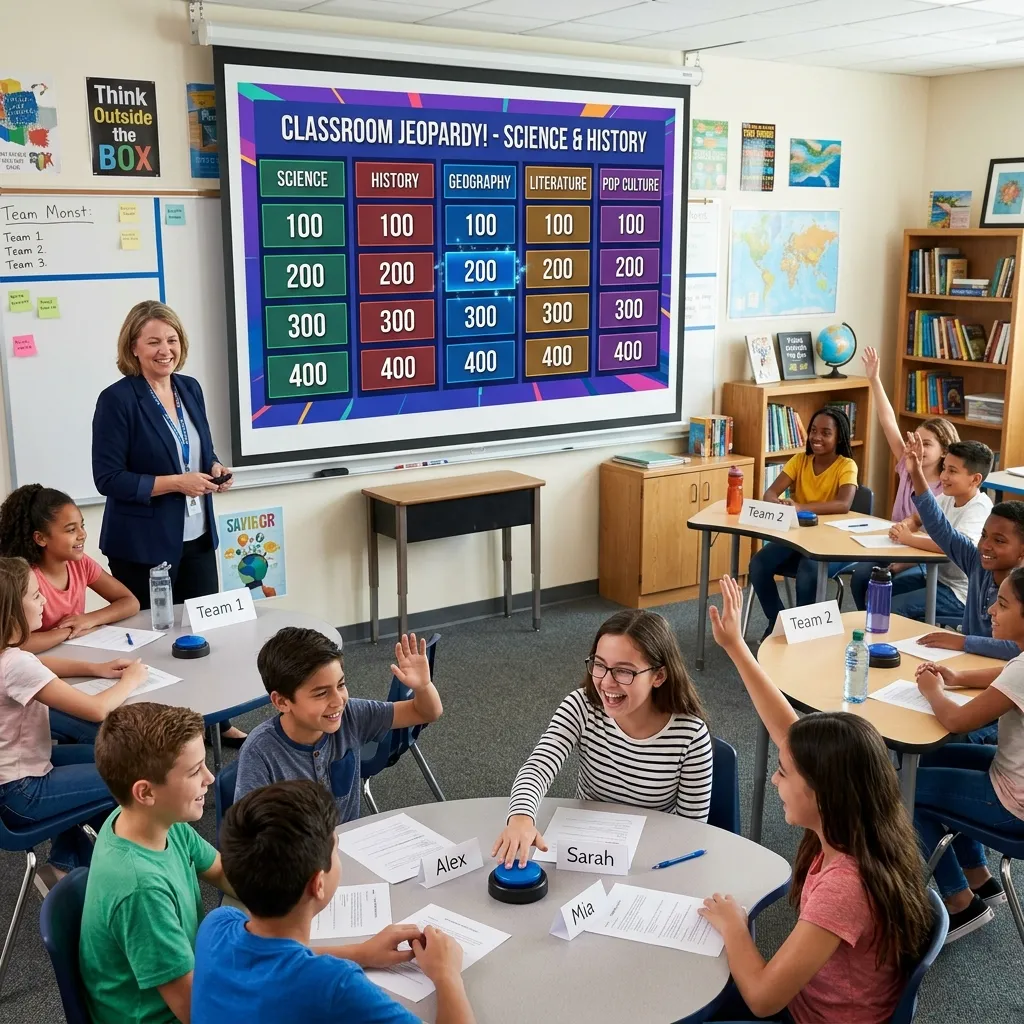
Creating an interactive presentation captures the audience’s attention immediately. This guide teaches you exactly how to design a fully functional trivia game for classrooms or corporate training.
Building a custom game requires structuring a main grid, linking slides via hyperlinks, and adding navigation buttons. This tutorial covers formatting basics, advanced multimedia integration, and avoiding common design flaws, ensuring you deliver an engaging, glitch-free experience for any audience.
Step-by-Step Guide to Creating a Jeopardy PowerPoint Template
Designing your own game from scratch gives you complete control over the content, branding, and functionality. Follow these specific steps to turn a blank canvas into a highly interactive experience.
Setting up the Game Board
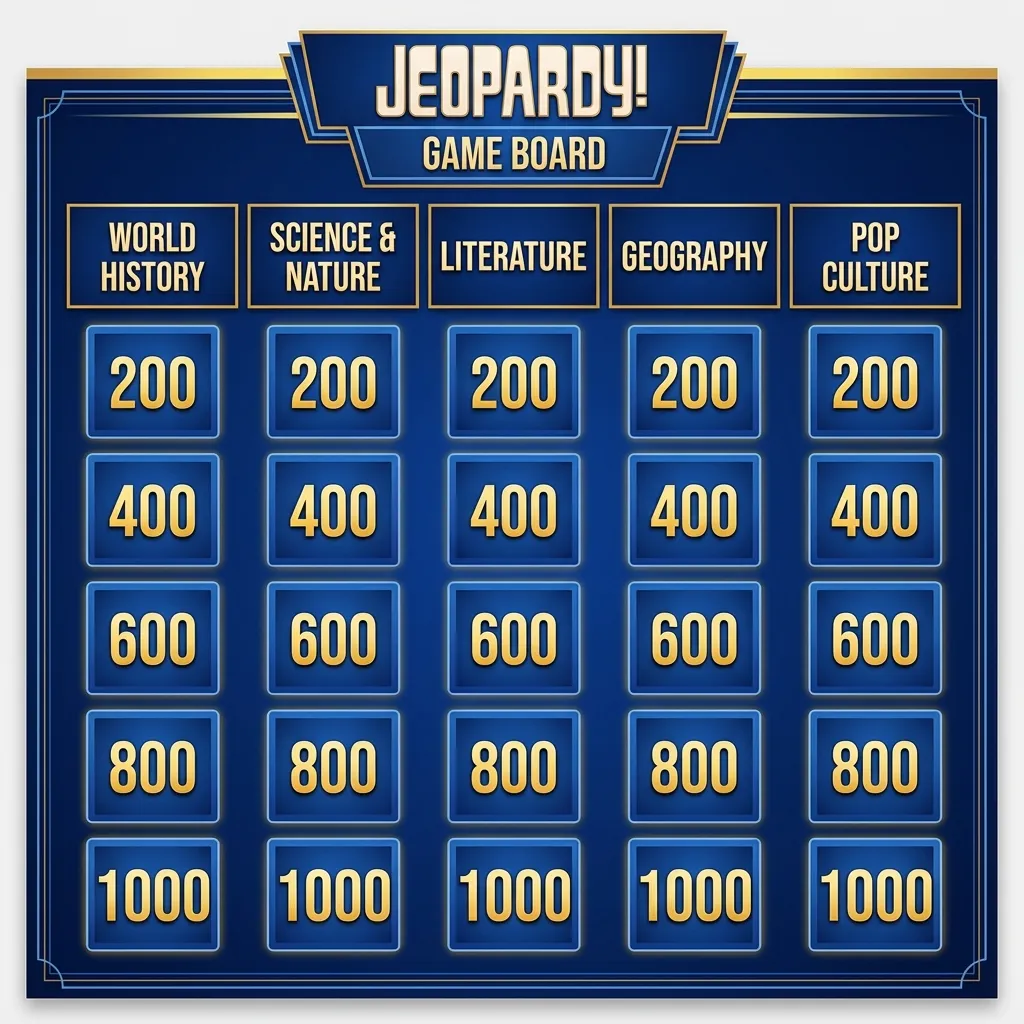
Your main board acts as the central hub for the entire game. Open a blank presentation and create your first slide. Insert a table with six columns and six rows. The top row will house your six category names, while the remaining five rows will display the point values (typically 100 through 500).
Adjust the table dimensions to fill the entire slide. Use bold, legible fonts like Arial or Calibri to ensure players can read the categories from the back of the room. Apply contrasting colors, such as a deep blue background with bright yellow text, to mimic the classic television show aesthetic. For more guidance on choosing high-contrast colors for accessibility, review the visual design guidelines provided by Microsoft Support.
Creating Question and Answer Slides
You need a total of 60 individual slides to accompany your main board—30 for the questions and 30 for the corresponding answers. Create a new slide for the first 100-point clue. Type the clue clearly in the center of the slide. Next, create an immediate follow-up slide containing the correct answer.
To save time, duplicate these slide pairs until you have enough for the entire board. Organize your slides logically in the left-hand navigation pane. Group them by category and point value so you can easily locate and edit specific clues later. Utilizing slide master layouts can speed up this process by standardizing your fonts and backgrounds across all 60 slides instantly.
Linking Buttons to Slides
The interactivity of your game relies entirely on hyperlinks. Return to your main board slide. Highlight the text for the 100-point value in your first category. Right-click the text and select “Link” or “Hyperlink.” Choose the option to link to a “Place in This Document” and select the specific slide containing that exact clue.
Repeat this tedious but essential process for all 30 point values on your main board. When you present the slideshow, clicking a point value will now transport you instantly to the correct clue. To prevent accidental clicks from ruining the game flow, disable the default feature that advances slides on a mouse click. You can do this by navigating to the Transitions tab and unchecking the “On Mouse Click” box.
Adding Return Links
After a player answers a clue, you must navigate back to the main board to select the next category. Go to your first answer slide. Insert a shape, such as a small house icon or a simple rectangle, in the bottom corner. Right-click this shape, add a hyperlink, and point it back to Slide 1 (your main board).
Copy this hyperlinked shape and paste it onto all 30 answer slides. The hyperlink properties copy over automatically, saving you massive amounts of time. Now, the host simply clicks this button to return to the category selection screen, keeping the game moving smoothly.
Advanced Customization: Sounds, Animations, and Multimedia
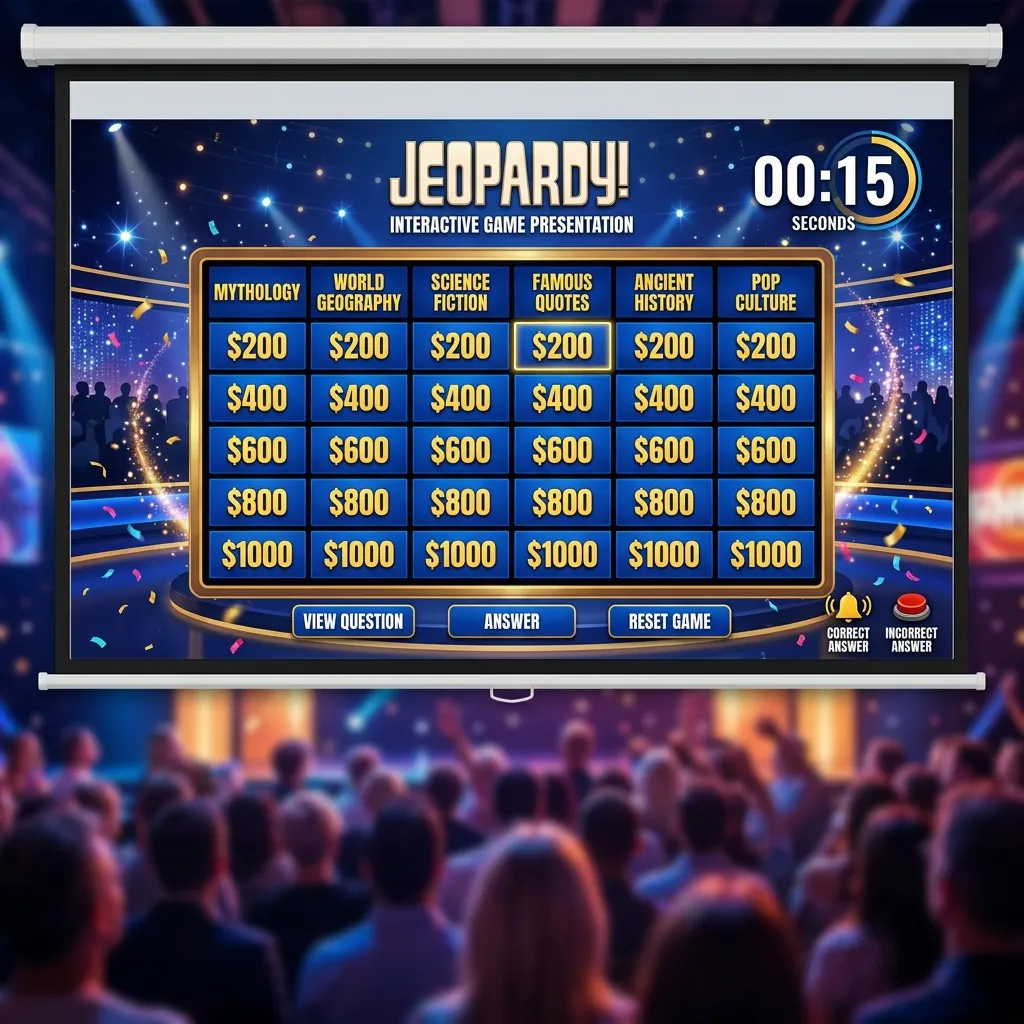
Once the basic structure works, you can elevate the experience by integrating multimedia elements. Adding a timer creates urgency and heightens engagement. You can create a visual countdown timer by using a series of shrinking shapes tied to exit animations. Adjust the timing of these animations to last exactly 30 seconds.
Incorporate audio cues for correct and incorrect answers. Insert an audio file and set it to play when you click a specific trigger shape, like a green checkmark or a red X. You can find free, public domain sound effects on educational resource sites. If you want to include visual media, embed high-resolution images or short video clips directly onto the clue slides. Multimedia learning heavily relies on balancing visual and auditory inputs without overwhelming the learner, as detailed in research by the American Psychological Association.
Furthermore, you can change the color of the point values on the main board after someone clicks them. By modifying the “Followed Hyperlink” color scheme in the Design tab, the point values will fade out or change color, clearly indicating which clues remain on the board.
Comparison of Top Jeopardy Template Resources
If building a game from scratch seems too time-consuming, several platforms offer excellent pre-made options. The table below compares the best resources available online.
|
Resource Platform |
Customizability |
Price |
Best For |
|---|---|---|---|
|
Microsoft Create |
High |
Free |
Corporate training and professional events |
|
Teachers Pay Teachers |
Moderate |
Paid ($2 – $10) |
K-12 educators needing subject-specific games |
|
SlidesCarnival |
Very High |
Free |
Designers seeking highly visual, themed layouts |
|
Factile |
Low (Web-based) |
Freemium |
Quick deployment without downloading software |
Using a pre-made resource can save you hours of formatting, but you must still double-check the internal hyperlinks to ensure they function correctly on your specific machine.
Common Mistakes to Avoid
Many creators fall into predictable traps when designing interactive presentations. Avoid these frequent errors to ensure your game runs flawlessly:
- Neglecting to disable mouse clicks: If you forget to uncheck “On Mouse Click” in the Transitions tab, missing a hyperlink by a millimeter will advance the presentation to the wrong slide, ruining the game.
- Using unreadable fonts: Elaborate cursive fonts look beautiful but fail completely in a large presentation room. Stick to bold, sans-serif fonts.
- Breaking links during transfers: If you email the presentation to a different computer, test it before the event. Sometimes, older versions of the software corrupt internal hyperlinks.
- Ignoring the following hyperlink color: Failing to set a distinct color for clicked links leads to confusion, as players will repeatedly call out point values you already cleared.
- Overcrowding text: Do not write paragraphs on a clue slide. Keep questions concise. If a question requires extensive context, read the context aloud and only put the core question on the screen.
Expert Pro Tips for High Engagement

To transform a standard trivia session into a memorable event, integrate these advanced strategies.
First, utilize gamification techniques by offering tangible rewards. Even small prizes drastically increase participation levels. Second, include a “Daily Double” slide. Do not link this directly from the main board. Instead, create a brief interstitial slide that plays a distinct sound effect before advancing to the actual clue. This breaks up the pacing and adds a layer of excitement.
Third, rehearse the presentation in Slide Show mode. Navigating hyperlinked slides requires a specific rhythm. Practice clicking the precise trigger buttons, playing the audio cues, and navigating back to the home board until the physical movements feel entirely natural. For more strategies on delivering engaging presentations, consult the communication experts at Harvard Business Review.
Finally, tailor the difficulty perfectly to your audience. Start the 100-point rows with obvious, easy questions to build confidence, and scale the 500-point rows to genuinely challenge your smartest participants.
Conclusion
Building an interactive trivia board empowers you to transform dull review sessions into dynamic, highly competitive learning environments. By carefully structuring your hyperlinks, integrating multimedia elements, and avoiding common navigation pitfalls, you guarantee a seamless presentation. Apply these exact strategies today to captivate your next audience and elevate your content delivery.