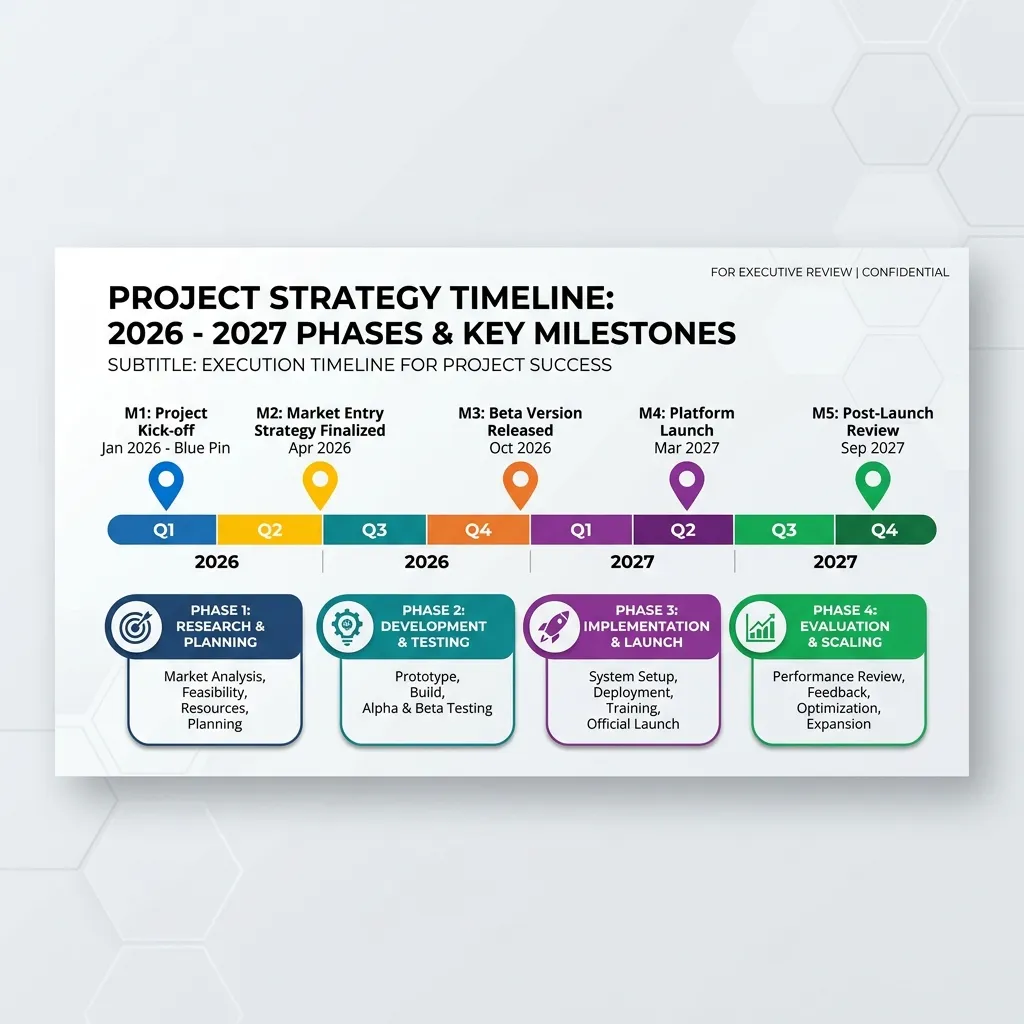
A PowerPoint timeline template transforms complex plans into simple, visual milestones that anyone can follow. By mastering these templates, you can deliver clear, compelling presentations, communicate crucial deadlines, and keep every stakeholder engaged and informed.
A PowerPoint timeline template is a versatile, pre-designed slide that displays events, milestones, or phases in chronological order. Leveraging this tool saves considerable design time, improves brand consistency, and sets a strong foundation for impactful business presentations. Strategic use of a PowerPoint timeline template helps teams visualize and track progress, quickly spot delays, and keep projects running smoothly from kickoff to completion.
What are the Features, Types, and Benefits of a PowerPoint Timeline Template?
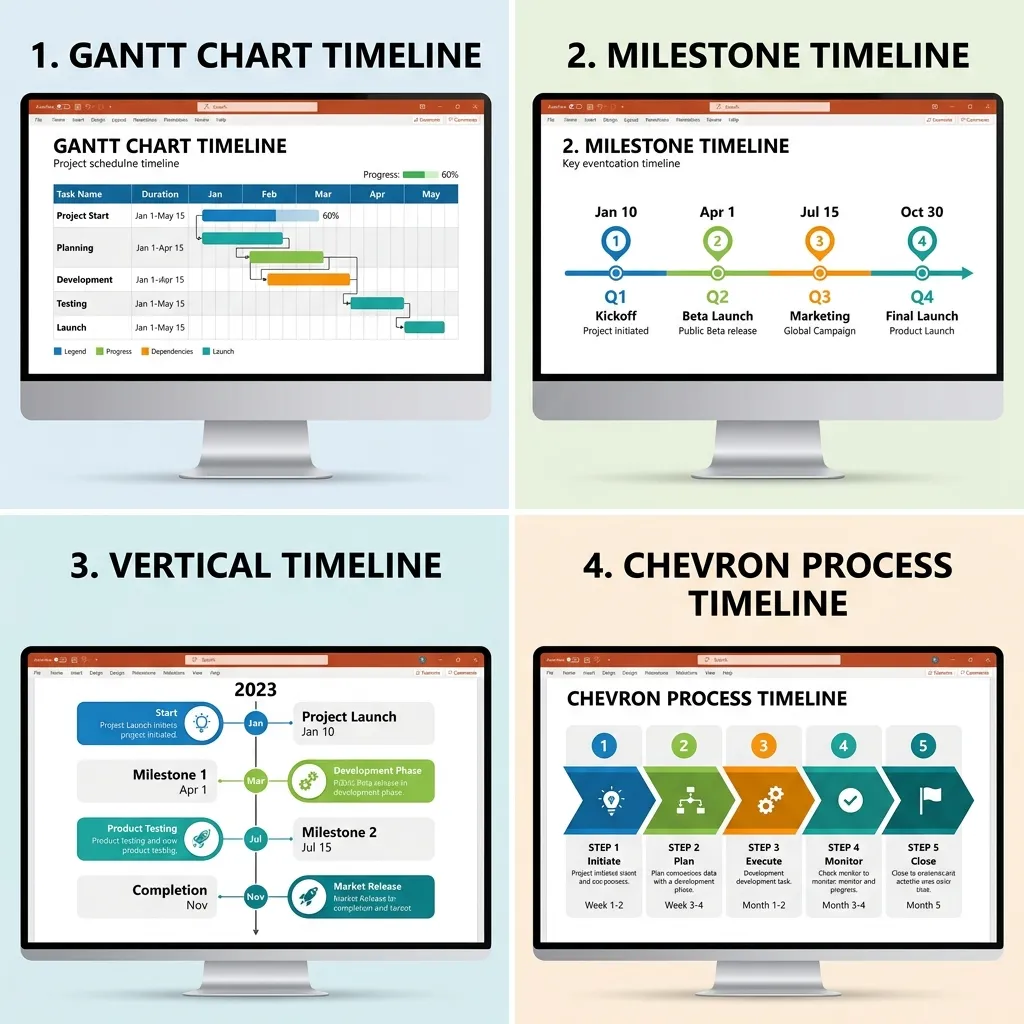
Understanding the functional building blocks and diversity of timeline templates allows you to select the ideal format for any audience and purpose.
Essential Features of a PowerPoint Timeline Template
High-quality PowerPoint timeline templates come with several must-have characteristics:
- Editable Text Blocks: You can swiftly update project phases or deliverable names as needs evolve.
- Customizable Color Palettes: Options to align your slides with company branding for a polished, professional appearance.
- Scalable Vector Graphics: Elements remain sharp and readable, even when projected onto large screens or shared on high-res monitors.
- Grouped Elements: Key points, icons, and shapes can be moved as a unit, protecting your slide’s alignment and balance.
- Drag-and-Drop Milestones: Easily reposition key dates or events according to your project schedule.
A well-designed timeline template is also accessible. Experts at Harvard Business Review emphasize the importance of clear visuals for audience retention. Accessible color contrast, legible fonts, and logical information hierarchy ensure your presentation resonates with everyone, including viewers with visual or cognitive impairments.
Common Types of PowerPoint Timeline Templates
There’s no universal timeline. Depending on your objective, some templates fit better than others:
- Gantt Chart Timeline Templates: Best for project managers who need to track simultaneous tasks, dependencies, and critical paths.
- Milestone Timeline Templates: Great for executive briefings, highlighting key deliverables, or strategic achievements at a glance.
- Historical Timeline Templates: Use these for showcasing product development, brand evolution, or company history across years.
- Vertical Timeline Templates: Made for digital sharing or situations where vertical scrolling is preferred, such as mobile presentations.
- Chevron or Step Timeline Templates: Useful for outlining step-by-step processes, onboarding flows, or phased deployments.
- Swimlane Timelines: Like in cross-functional projects, these show multiple work streams and participant responsibilities side by side.
By thoughtfully matching the template to your message, you vastly increase the clarity and retention of your information.
Key Benefits of Using a PowerPoint Timeline Template
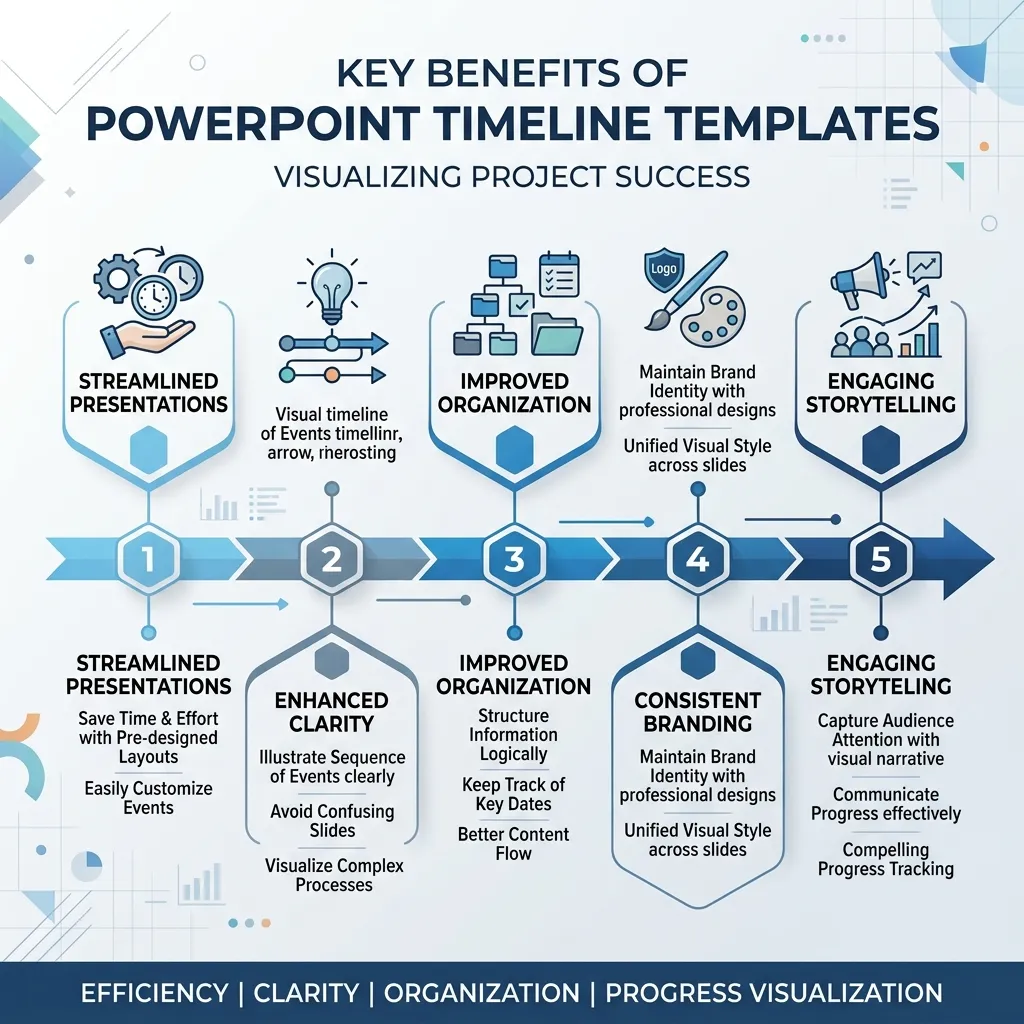
Choosing a template over a manual design process comes with important advantages:
- Time Savings: Pre-built timelines cut hours from your preparation workflow.
- Consistency: Branded, repeatable elements keep your presentations cohesive across departments.
- Professional Polish: Instant design sophistication impresses both internal and external audiences.
- Adaptability: With a few clicks, templates are refreshed for new audiences or reporting periods.
- Accessible Communication: A good timeline improves transparency and helps all stakeholders grasp changes and expectations.
Building a Compelling Presentation with a PowerPoint Timeline Template
Using a PowerPoint timeline template isn’t just about plugging in a few dates—it’s a strategic storytelling opportunity. Here’s a step-by-step approach you can follow to turn a blank timeline into a memorable project narrative:
1. Define Your Project Milestones
Start by identifying critical events: project kickoff, key delivery dates, phase completions, and review checkpoints. Listing out all imaginable events first, then narrowing them down to the most essential, keeps your timeline focused and avoids unnecessary crowding.
Tip: Five to eight milestones usually strike the optimal balance between informativeness and legibility.
2. Select the Right Template
Choose a template to fit your audience and message: Gantt charts suit technical stakeholders, while basic milestone timelines work well for C-suite overviews. If your project is cross-departmental, swimlane timelines illustrate parallel tracks and teamwork.
Action Step: Consider data complexity, project duration, and level of granularity needed. For detailed projects with overlapping activities, avoid a simple linear template to prevent clutter.
3. Customize the Timeline
- Replace placeholder text with real dates, deliverable names, or phase objectives.
- Use your organization’s brand palette—colors, fonts, and logos—for a consistent look.
- Add or remove milestones as the schedule shifts.
- For accessibility, maintain high-contrast color pairings (dark text on light backgrounds) and minimum font sizes as recommended by Microsoft Office Support.
4. Visual Polish and Alignment
- Align all visual elements using PowerPoint’s built-in alignment and distribution tools to maximize clarity.
- Keep lines straight and spacing even—crooked timelines create confusion and reduce credibility.
- Use icons or images to reinforce meaning, but don’t exaggerate or overload the slide.
5. Present the Timeline Effectively
Introduce your timeline early in your presentation and reference it as you walk through each project stage. Use simple animations, like fade-ins or wipes, to reveal milestones one by one, guiding audience attention and making it easier for viewers to follow progress chronologically.
Comparison Table: Popular PowerPoint Timeline Templates
To make the selection process easier, compare the most commonly used PowerPoint timeline templates according to use-case, complexity level, and how quickly they can be customized for new projects.
|
Template Type |
Best Used For |
Complexity Level |
Customization Speed |
|---|---|---|---|
|
Basic Milestone Timeline |
Executive summaries, quick updates |
Low |
Very Fast |
|
Gantt Chart Timeline |
Detailed project management |
High |
Moderate |
|
Swimlane Timeline |
Cross-departmental workflows |
Medium |
Moderate |
|
Chevron Timeline |
Step-by-step process flows |
Low |
Fast |
|
Vertical Timeline |
Mobile-first documents |
Low |
Fast |
Common Mistakes to Avoid with a PowerPoint Timeline Template
PowerPoint timeline templates are powerful but can easily fall flat if misused. These pitfalls often separate impressive presentations from forgettable ones:
Overcrowding the Timeline
Trying to cram every event into a single slide is a classic mistake. Overcrowded timelines confuse rather than clarify. Only include major milestones and keep supporting detail in either speaker notes or handouts.
Ignoring Brand Guidelines
Using default or clashing colors makes slides look amateurish. Take time to update the palette and fonts so your timeline adheres to company standards. This builds authority and professionalism.
Failing to Align Elements
Misaligned milestones, uneven spacing, and disjointed icons disrupt viewer focus. Always use PowerPoint’s alignment tools to ensure a neat, logical flow.
Overusing Animation
While animation can emphasize the flow of time, overuse distracts. Subtle reveals are best, and avoid using loud or complicated transitions.
Not Testing Accessibility
Small fonts, low-contrast color pairings, or heavy graphic effects can make timelines hard to read for some. Confirm that your design meets accessibility standards by previewing your slide on different devices and asking for feedback from team members with varied needs.
For more guidance on effective visual communication, the Nielsen Norman Group offers best practices grounded in user experience research.
Expert Insights: Maximizing Your PowerPoint Timeline Template
Industry professionals and experienced project managers utilize advanced strategies to extract maximum value from timeline templates. Here’s what sets their presentations apart:
Strategic Use of Animations
Animations can help your audience focus step by step. Use simple entrance effects—like fade or wipe—to bring in each milestone as you address it. This approach holds interest and prevents information overload.
Linking Data to External Sources
For rapidly changing projects, link your timeline directly to data in Excel. When updates are made in the spreadsheet, your PowerPoint timeline updates too—no manual adjustment required. Learn more about data linking from the Project Management Institute.
Adding Visual Context

Complement your timeline with icons for deliverables, status indicators, or phase markers. Use callouts or brief notes for high-impact information.
Regularly Updating Templates
Maintain a template repository and update templates regularly to reflect changes in branding or project requirements. This habit preserves both consistency and relevance across all your presentations.
Collaborate and Reuse
Encourage your team to share, reuse, and improve upon timeline templates. Shared resources cut down on duplicative effort and promote presentation quality across the organization.
Elevating Project Communication with PowerPoint Timeline Templates
Choosing the right timeline template does more than deliver information—it creates a clear visual journey for your audience. When stakeholders see thoughtfully organized timelines, trust in the process grows, engagement improves, and buy-in for next steps follows naturally.
Consistently applying the techniques described here streamlines communication, enhances project transparency, and delivers measurable value for both everyday updates and big executive pitches. Begin integrating high-quality PowerPoint timeline templates into your reporting today and watch your team’s project management rise to the next level.
Frequently Asked Questions (FAQs)
What is a PowerPoint timeline template?
A PowerPoint timeline template is a pre-configured presentation slide used to visually present key events, project stages, or historical periods in chronological order, making them easy for audiences to understand.
Why use a PowerPoint timeline template rather than building one from scratch?
A template saves significant time, guarantees design consistency, and ensures elements are perfectly aligned. You can focus on your content, not on formatting or design nitty-gritty.
Are there free PowerPoint timeline templates available?
Absolutely! Microsoft’s official template library, sites like Canva, and popular niche providers offer many free and paid templates tailored to business, education, or marketing needs.
How do I customize my timeline template’s colors?
Simply select the shape or text you want to recolor, then use PowerPoint’s “Shape Fill” or “Font Color” tools, found in both the “Shape Format” and “Home” tabs. Setting your template color to match your brand guidelines is always recommended.
Which template works best for complex projects?
Gantt chart timeline templates are preferred for complex projects. They let you display overlapping tasks, dependencies, and phases, giving you a project management view in a single glance.
Can I use these templates with tools like Google Slides?
Most PowerPoint timeline templates (in .pptx format) can be imported into Google Slides. Just note that some complex animations or unique fonts might need slight adjustment.
How many milestones fit best on one timeline slide?
Typically, keep it between five to eight milestones. This ensures each item is readable and the flow of the project remains clear.
Does a PowerPoint timeline template update automatically if project dates change?
Standard templates require manual edits. For seamless updates, consider linking your template to a live data source like Excel, which automates changes when underlying data updates.
How can I animate a timeline for better storytelling?
After ungrouping your timeline elements, select milestones and use entrance effects like “Fade” or “Wipe” via the “Animations” tab. Reveal items sequentially as you narrate each phase.
Where can I find professional timeline templates for PowerPoint?
Reliable options are available directly from Microsoft’s library, or professional design platforms like Envato Elements and SlideModel.