This comprehensive guide unpacks why animation matters, explores common effect categories, outlines best practices for seamless integration, reviews leading tools, and provides a step-by-step roadmap to bring your slides to life. Whether you’re delivering a sales pitch, academic lecture, or team briefing, you’ll discover actionable tips to elevate your deck. By the end, you’ll feel equipped to craft presentations that move—literally and figuratively—your audience toward understanding and action.
Understanding the Impact of Slide Animations
Enhancing Audience Engagement
Slide animations transform passive viewers into active participants by creating a sense of anticipation. A well-timed entrance effect can direct eyes exactly where you want them, preventing overload and guiding focus methodically. Research from the University of California shows that visual cues combined with motion enhance cognitive processing, making information easier to absorb and remember. When your next data point fades in, or a chart component spins into view, you bridge the gap between overwhelming dumps of content and digestible, bite-sized revelations.
Reinforcing Narrative Flow
In today’s presentations, storytelling underpins effective communication. Animations serve as narrative signposts, indicating shifts between ideas, steps in a process, or levels of importance. By sequencing elements in a deliberate order—such as staggering bullet points at 0.3-second intervals—you maintain momentum and ensure each idea receives the spotlight. This approach aligns with principles from Harvard Business Review on cognitive gymnastics in learning , where pacing information strategically avoids cognitive overload.
Clarifying Complex Processes
Step-by-step reveals enable audiences to follow intricate workflows without getting lost. Whether illustrating supply chains, scientific mechanisms, or software architectures, motion paths and emphasis effects break down complexity. Instead of presenting a static diagram with dozens of labels, you can animate each component in turn, explaining functionality before moving to the next. This layered approach facilitates deeper comprehension and allows learners to connect the dots gradually.
Professionalism and Brand Consistency
Beyond cognitive benefits, cohesive animation styles lend polish to any deck. Consistent timing, easing curves, and design language reinforce brand identity, projecting reliability and attention to detail. This year, corporations and educational institutions alike expect presenters to leverage motion thoughtfully, reflecting a sophisticated grasp of digital communication trends.
Selecting Appropriate Animation Styles
Entrance Effects to Set the Stage
Entrance animations introduce elements in a controlled manner. Common choices include fade-ins, fly-ins, and zoom-ins. Fade-ins are subtle and versatile, ideal for corporate reports or research findings that benefit from a conservative approach. Fly-ins can evoke energy, guiding the audience’s gaze from off-screen into the content. Zoom-ins emphasize focal points, drawing attention to images, quotes, or key statistics. When selecting an entrance effect, consider your brand tone, presentation context, and audience expectations.
Emphasis Effects to Highlight Key Points
Emphasis animations call attention to existing elements without restarting the narrative flow. Pulse, spin, bounce, or color-shift effects can underscore new data or remind viewers of previously introduced information. Use sparingly: a single emphasis per slide often suffices to draw focus. Too many can create confusion and detract from the core message.
Exit Effects for Controlled Transitions
Exit animations remove elements cleanly, making room for new content without abrupt disappearance. Fade-outs and fly-outs work well to avoid jarring viewers. For example, as you finish discussing a chart, a fade-out can clear the slide for your next graphic, signaling a natural progression. Proper timing—usually 0.5 to 1 second—ensures readers complete processing before items vanish.
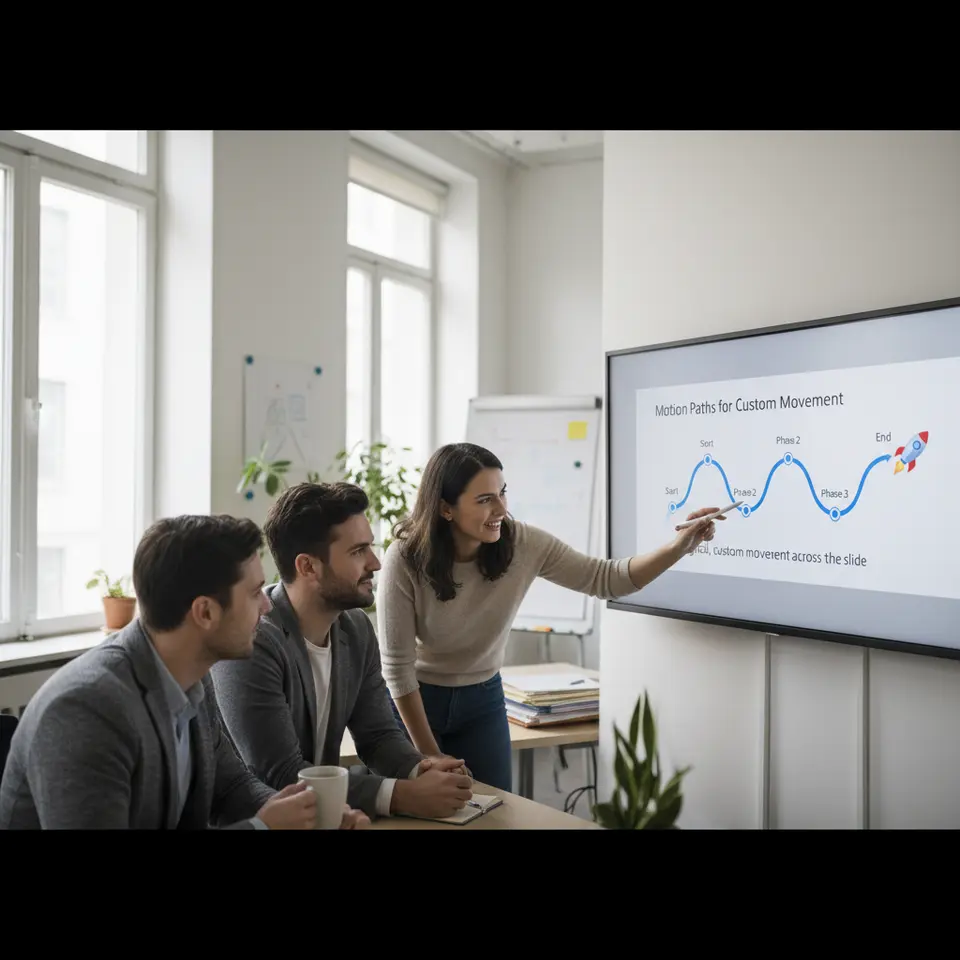
Motion Paths for Custom Movement
Motion paths allow objects to follow defined trajectories across slides. They shine when illustrating workflows, geographic routes, or progress stages. Drawing a bespoke curve for an icon to follow helps simulate real-world movement, lending clarity to abstract processes. However, keep paths simple, logical, and smooth to prevent distraction.
Slide Transitions to Tie Everything Together
Transitions between slides set the overall pacing. Popular options include slide, morph, or push effects. The morph transition, available in tools like Microsoft PowerPoint, interpolates object changes to create seamless transformations. Use uniform transitions throughout to maintain consistency. Abrupt shifts or mixing multiple transition styles can undermine the professionalism of your deck.
Implementing Motion Graphics with Purpose
Be Consistent with Animation Styles
Consistency is critical. Limit yourself to one or two effect families per presentation to avoid visual overload. For instance, choose fade-ins for all entrances and subtle pulses for emphasis. This restraint ensures that animations reinforce rather than compete with your narrative.
Apply Thoughtful Timing and Easing
Timing transforms animations from gimmicks into meaningful cues. Optimal durations range between 0.5 and 1 second; too quick feels rushed, too slow drags down the flow. Easing curves—such as ease-in-out—imitate natural movement, lending a polished touch. Most slide editors offer customizable easing; experiment until transitions feel fluid.
Maintain Readability and Accessibility
Animated text must remain legible throughout movement. Avoid effects that overlap letters or zoom too rapidly. If motion-sensitive viewers are part of your audience, provide a static fallback version or offer an option to disable animations. Ensuring compliance with accessibility standards demonstrates respect for all participants.
Match Animations to Your Brand Tone
Different contexts call for different vibes. Corporate pitches often benefit from restrained fades and easy transitions, while creative showcases may embrace dynamic spins or bounces. Align motion style with your organization’s identity guidelines and the emotional tone of your message.
Test Across Devices and Settings
Presentations rarely play on a single device. Projectors, laptops, tablets, and smartphone screens handle graphics differently. Prior to your event, test animations in slideshow mode on each platform. Look for lag, stutter, or clipping, and optimize file size or simplify effects as needed.
Optimizing Performance and Accessibility

Keep File Size in Check
High-resolution images, embedded videos, and complex motion paths can bloat your presentation file. Large files may cause stutters during real-time playback. Compress images, limit video resolution, and simplify animation sequences to maintain smooth performance. Many tools feature built-in compression utilities—use them before final delivery.
Provide Fallbacks for Non-Animated Outputs
When sharing slide decks as PDFs or printed handouts, animations are lost. Ensure that the static design remains clear without motion. Lay out elements in the intended final order and incorporate visual markers—such as numbered labels—to guide readers through the logical sequence.
Address Motion Sensitivity Concerns
Some viewers experience discomfort with too much movement. Offer alternatives like a non-animated version or warn participants in advance. Incorporating a brief disclaimer—“This presentation uses motion graphics; a static copy is available upon request.”—demonstrates thoughtfulness and inclusivity.
Adhere to Accessibility Standards
Ensure text contrasts remain high and animations do not trigger epilepsy or vertigo. Following guidelines from authorities like the World Wide Web Consortium (W3C), Web Content Accessibility Guidelines helps you design responsibly. Check that each transition and effect meets recommended thresholds for movement and contrast.
Gather Feedback and Iterate
After running through your deck, solicit input from colleagues or a test audience. Note any points where viewers felt rushed, confused, or distracted. Refining timing, reducing effects, or clarifying motion paths based on real-world feedback enhances your final result.
Tools and Platforms for Dynamic Presentations
Microsoft PowerPoint
PowerPoint remains the industry workhorse for slide animations. It offers entry, exit, emphasis, and motion-path options with customizable easing curves. The Morph feature adds seamless transformations between object states. Frequent updates ensure compatibility across devices and support for video embedding.
Google Slides
Google Slides excels at quick, browser-based editing and collaboration. While its animation library is more limited—mainly fades and simple slides—it compensates with real-time co-authoring and cloud storage. Ideal for teams that work remotely or require rapid iteration.
Apple Keynote
Keynote on macOS offers advanced Magic Move transitions and intuitive object-tracking capabilities. Presenters can apply 3D effects and layer-based animations with drag-and-drop ease. The resulting files often boast smaller sizes and richer visual fidelity on Apple devices.
Adobe After Effects
For complex motion graphics and compositing, After Effects is the gold standard. You can design bespoke animations, kinetic typography, and visual effects, then export as video or GIF for embedding in your slides. This approach suits designers who need full creative control.
Canva Pro
Canva Pro offers a user-friendly interface with a library of prebuilt animated templates and stock motion assets. While not as robust as After Effects, it empowers non-designers to produce polished animations quickly. Cloud-based design collaboration and direct sharing options make it a popular choice for marketing teams.
Step-by-Step Integration of Animations
1. Outline Your Narrative Flow
Begin by mapping out your presentation structure. Identify where motion will enhance understanding—whether to highlight a data reveal, transition between topics, or illustrate a step in a process. A clear narrative outline ensures you apply animations purposefully rather than haphazardly.
2. Choose Key Elements for Animation
Select headings, bullet lists, charts, or images that would benefit most from entrance or emphasis effects. Avoid animating every single object; focus on areas where motion adds genuine clarity or impact.
3. Apply Entrance Effects with Logical Sequencing
Add subtle fades or fly-ins to each chosen element. Sequence them in the order you plan to discuss, staggering start times by 0.3 to 0.5 seconds. This creates a guided path for the viewer’s eye and prevents cognitive overload.
4. Fine-Tune Timings and Delays
Play your presentation in slideshow mode and observe the pacing. Adjust durations so animations feel neither rushed nor overly slow. Aim for a natural rhythm that complements your speech tempo and audience reading speed.
5. Incorporate Transitions Between Slides
Use consistent slide transitions—such as Morph or Push—to maintain momentum between sections. Ensure the transition style aligns with your overall animation theme to avoid visual dissonance.
6. Ensure Accessibility and Provide Fallbacks
Offer a static version or disable animations for sensitive audiences. Confirm that text remains legible throughout motion sequences and that color contrasts comply with accessibility standards.
7. Test on Multiple Platforms and Refine
Before your live presentation, test the deck on projectors, laptops, tablets, and smartphones. Note any performance issues or display inconsistencies, then simplify or optimize your animations accordingly.
Conclusion
In this year, mastery of slide animations and motion graphics is a powerful tool for anyone seeking to engage, educate, and persuade. By understanding the impact of motion on cognition, selecting appropriate effect styles, and following best practices for timing and accessibility, you can craft presentations that resonate long after the final slide. Leveraging leading platforms—from Microsoft PowerPoint and Google Slides to Adobe After Effects—enables you to balance creativity with practicality. Take a methodical, narrative-focused approach: outline your story, choose key elements for animation, refine your timing, and test rigorously across devices. With these steps, your decks will not only look professional but also deliver clear, memorable messages.