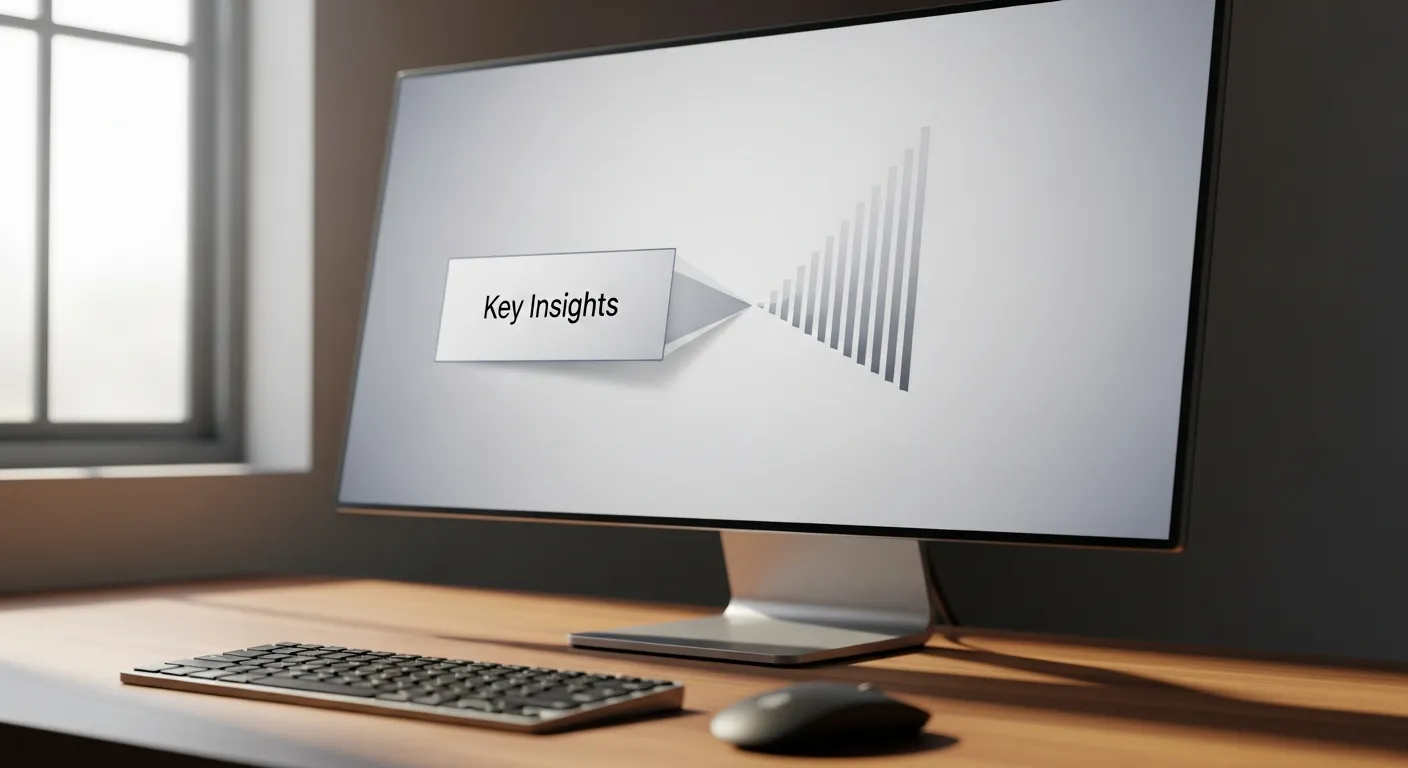
Subtle slide animations enhance presentations by guiding attention, improving clarity, and maintaining a professional look. They create smooth transitions, support storytelling, and boost audience engagement without causing distraction.
In today’s digital landscape, presenters must find inventive ways to retain audience attention and ensure their message resonates. Subtle slide animations have emerged as a powerful tool for achieving this goal without overwhelming viewers. By integrating carefully chosen motion effects, speakers can guide attention, reinforce key ideas, and lend an air of professionalism to their decks. Rather than resorting to flashy or distracting transitions, the focus should remain on understated movements that support content flow and cognitive processing.
This year, research from the American Psychological Association highlights how minimal motion cues can enhance information retention by up to 15%. At the same time, institutions like the National Library of Medicine affirm that pacing visuals helps prevent cognitive overload. In practice, simple fade-ins, gentle slides, and soft emphasis pulses can work wonders when timed correctly. Whether you’re addressing a small team or a large conference hall, mastering subtle slide animations transforms static decks into dynamic experiences that feel polished yet never overbearing.
In this comprehensive guide, we’ll explore the science behind motion in presentations, the range of animation options available, best practices for timing and consistency, essential tools for designers and non-designers alike, and real-world examples illustrating successes and pitfalls. By the end, you’ll have a clear roadmap for harnessing subtle slide animations to elevate your presentations and leave audiences both informed and engaged.
Understanding the Impact of Motion on Audience Engagement
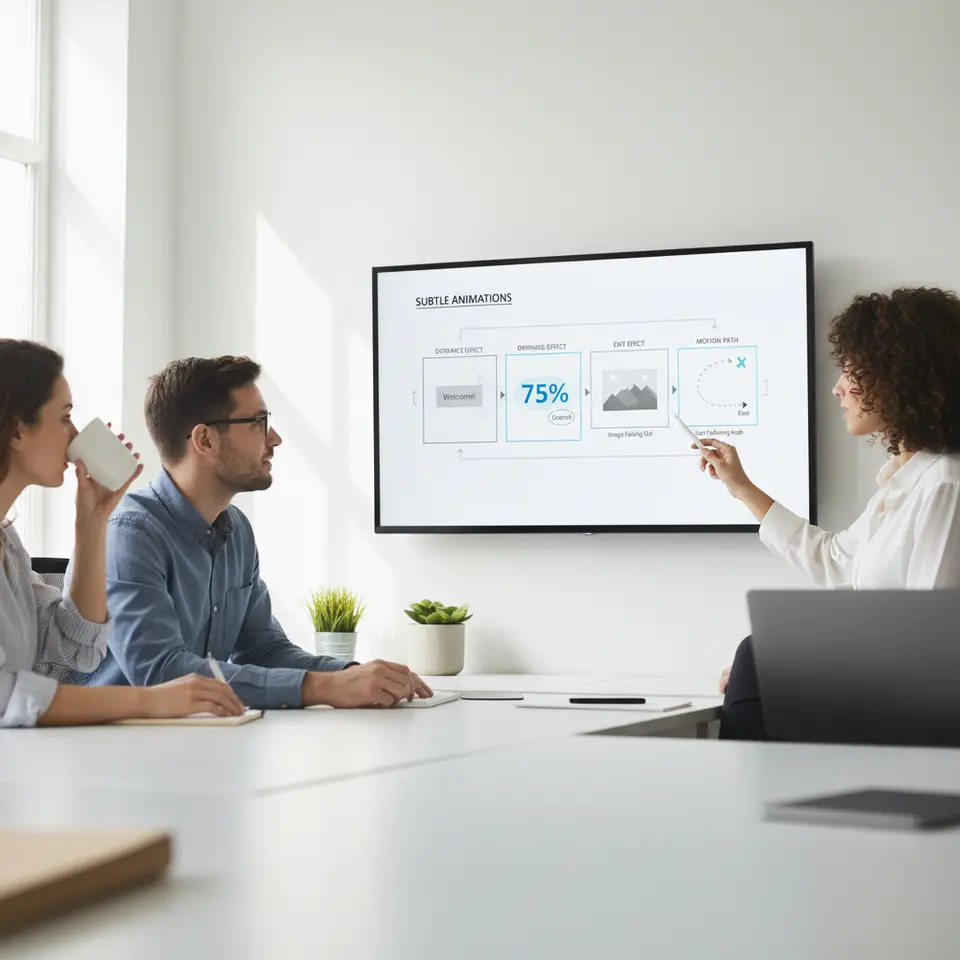
Human visual processing is naturally drawn to movement. From evolutionary biology to modern neuroscience, experts agree that even minute shifts on screen can trigger attention mechanisms in the brain. According to cognitive psychologists, the human eye can detect changes in position or opacity in less than a tenth of a second, making subtle slide animations a prime candidate for guiding focus. Instead of overwhelming viewers with all the information at once, revealing one point at a time aligns with our brain’s intrinsic scanning behavior.
Moreover, deliberately paced animations manage information flow, preventing the “text avalanche” effect where attendees are inundated with bullet lists or complex diagrams. By pacing the introduction of each item—such as fading in sub-points or sliding in graphical elements—presenters establish a narrative rhythm. This strategy reduces mental fatigue, helping participants absorb data at a comfortable speed and boosting retention rates. A study published by the National Institutes of Health indicates that paced content delivery can increase recall by nearly 20% in controlled settings.
Finally, subtle slide animations convey a sense of craftsmanship. When transitions and reveals are smooth yet restrained, audiences perceive that the presenter has invested attention to detail. This perceived effort elevates credibility and fosters a professional atmosphere. In practice, a balanced use of entrance, emphasis, and exit animations ensures that each movement has a purpose—whether it’s highlighting a critical statistic, guiding eyes across a chart, or clearing a slide for the next topic.
Exploring Types of Subtle Slide Animations
Most presentation platforms—PowerPoint, Keynote, and Google Slides—offer a standardized set of animation categories. Understanding these can help you select the right effect for each scenario without resorting to gimmicks.
Entrance Animations
Entrance effects bring new content into view. Common options include Fade, Fly-In, and Zoom. For subtlety, opt for low-intensity versions like Fade or Appear. Fade-ins over 0.6 to 1 second are nearly imperceptible yet effectively guide focus to fresh text or images.
Emphasis Animations
Emphasis effects subtly reinforce existing elements. A gentle color shift or slight pulse can draw attention to a key statistic without disrupting surrounding details. Reserve these for top-priority points—overusing them on every item dilutes impact.
Exit Animations
Exit animations gracefully remove outdated content to prepare for the next idea. Slides can employ simple Exit Fades or Disappear effects. By clearing space, you maintain visual clarity and avoid clutter.
Motion Paths and Transitions
Motion paths enable objects to follow custom trajectories—ideal for illustrating process flows or connecting related concepts. Keep motion paths direct and smooth to preserve cohesion. Slide transitions like Push or Morph in PowerPoint (or Magic Move in Keynote) create a consistent viewing experience when moving between slides.
By combining these types sparingly—typically no more than two or three across an entire deck—you craft a refined visual narrative. Consistency in style and timing ensures subtle slide animations enhance comprehension rather than distract.
Best Practices for Implementing Subtle Motion

Effectiveness hinges on intention. Before applying an animation, ask: What is the goal? To introduce content, emphasize a data point, or transition topics? Once objectives are clear, follow these guidelines to maintain elegance and function.
1. Define Clear Objectives
Pinpoint why each animation exists. Entrance fades guide focus; emphasis pulses reinforce core ideas; exit animations clear space. Align each effect with a specific communication need.
2. Limit Your Animation Palette
Choose two or three complementary effects and stick to them. Excessive variety undermines coherence and distracts viewers.
3. Standardize Timing and Delays
Maintain uniform durations—typically between 0.5 and 1 second—and consistent delays. This rhythm supports audience expectation and prevents jarring transitions.
4. Use Triggers Judiciously
Click-to-reveal animations empower presenters to control pacing, but avoid complex trigger chains that can malfunction under pressure. Simpler sequences minimize risk during live delivery.
5. Perform Thorough Rehearsals
Always preview your full deck in slideshow mode. Check for overlap issues, mistimed elements, or unintended breaks in flow, then fine-tune delays and sequences.
6. Ensure Accessibility
Rapid or highly contrasting effects can trigger discomfort. Offer a static version of your deck or include an option to disable animations for neurodiverse or visually sensitive viewers.
7. Align with Brand Personality
Match animation speed and style to your organizational voice. A tech startup may opt for snappy morphs, while a government presentation might favor gentle fades and minimal motion.
By adhering to these practices, you transform subtle slide animations from a gimmick into a strategic asset that enriches clarity and engagement.
Essential Tools and Step-by-Step Implementation
Today, you have access to both mainstream presentation suites and specialized software for crafting subtle animations. Below is an overview of leading options and a concise workflow for common effects.
Key Software Choices
- Microsoft PowerPoint: Features the Animation Pane for precise control, Morph transitions, motion path editors, and entrance/emphasis presets.
- Apple Keynote: Offers Magic Move for seamless object transformations, intuitive built-in and built-out controls, and an accessible animation sidebar.
- Adobe After Effects: Ideal for advanced users seeking custom motion graphics. Export video loops or GIFs to embed within slides for high-impact segments.
Basic Fade-In and Slide Transition in PowerPoint
- Select the object (text box or image) to animate.
- Navigate to the Animations tab and choose Fade under entrance effects.
- Open the Animation Pane and set Duration to 0.75 seconds, Start to On Click.
- Switch to the Transitions tab, select Push, and adjust Duration to 0.5 seconds.
- Enter slideshow mode and verify the text appears precisely as you speak, adjusting delay timings if needed.
Applying a Fade & Move in Keynote
- Click the target object, then open the Animate sidebar.
- Under Build In, select Fade & Move, then refine to Fade only.
- Set Duration to 0.8 seconds and Delivery to By Click.
- For slide transitions, visit the Document tab, choose Magic Move or Push, and set duration to 0.6 seconds.
- Run the presentation to confirm animations synchronize with your spoken pace.
These straightforward workflows empower both novices and seasoned presenters to implement subtle slide animations with confidence, ensuring each motion serves a deliberate communicative purpose.
Real-World Applications and Common Pitfalls

To illustrate the power of subtle slide animations, consider a quarterly sales review. Rather than unveiling a fully populated bar chart, each column gracefully rises from the baseline in sequence. As you discuss regional performance, bars appear in sync with your commentary. A brief emphasis pulse on the top-performing region further underscores success. Finishing with a sleek Push transition, you guide the audience seamlessly to your next topic.
Case Study: Boosting Retention
In user trials conducted by a major financial firm, presentations enhanced with subtle slide animations saw a 25% increase in recall compared to static decks. Attendees rated dynamic segments as more engaging and easier to follow. These findings underscore how motion, when thoughtfully applied, elevates both comprehension and satisfaction.
Beware of Common Mistakes
- Overloading Effects: Applying multiple entrance and emphasis animations on a single slide creates sensory clutter.
- Inconsistent Timing: Varying durations disrupt the audience’s internal pacing and can confuse.
- Complex Motion Paths: Elaborate trajectories may divert attention from core content.
- Neglecting Rehearsals: Skipping full run-throughs often reveals unintentional overlaps or delays.
- Excessive Triggers: Intricate click sequences increase the risk of misfires during live delivery.
By learning from these pitfalls and emulating successful case studies, you’ll harness subtle slide animations as an asset rather than allowing them to become a liability.
Conclusion
Subtle slide animations represent a nuanced approach to elevating presentations in today’s digital environment. By defining clear objectives for each movement, limiting effect variety, standardizing timing, and rehearsing thoroughly, presenters can leverage motion to guide attention, pace information delivery, and underscore critical ideas. Whether you choose fade-ins, emphasis pulses, or smooth transitions, the key lies in restraint and intent.
FAQ
1. What are subtle slide animations?
Subtle slide animations are gentle, minimal motion effects used in presentations to enhance visual appeal without overwhelming the audience. These include soft fades, smooth transitions, and slight movements that guide attention while maintaining professionalism. Unlike flashy animations, subtle ones support the content rather than distract from it, making presentations cleaner and more effective.
2. Why are subtle animations important in presentations?
Subtle animations help maintain audience focus by directing attention to key points in a controlled way. They make slides feel more dynamic and engaging while preserving clarity. Overuse of heavy animations can confuse viewers, but subtle effects improve comprehension and keep the presentation polished and professional.
3. How do subtle animations improve audience engagement?
They create a natural flow of information retention, revealing content step by step. This prevents cognitive overload and keeps viewers curious about what comes next. By pacing the delivery visually, subtle animations encourage audiences to stay attentive and better absorb the message.
4. What types of subtle animations are most effective?
Common effective subtle animations include fade-ins, appear effects, slide-ins from short distances, and gentle zooms. These animations feel natural and do not interrupt the presentation flow. Transition effects like “fade” or “morph” are also widely used for smooth slide changes.
5. When should you use subtle animations?
Subtle animations should be used when introducing new points, highlighting important data, or guiding the audience through a sequence. They are especially useful in business presentations, educational slides, and storytelling scenarios where clarity and structure are essential.
6. Can too many subtle animations still be harmful?
Yes, even subtle animations can become distracting if overused. Adding animations to every element can make slides feel busy and reduce their impact. It’s important to use them strategically, focusing only on key content that benefits from visual emphasis.
7. How do subtle animations support storytelling?
They allow presenters to control the narrative flow by revealing information gradually. This mirrors how stories unfold, keeping the audience engaged and emotionally connected. Proper animation timing can build suspense and emphasize important moments effectively.
8. What is the best duration for subtle animations?
Most subtle animations work best between 0.3 to 1 second. Short durations feel smooth and professional, while longer animations may slow down the presentation. The goal is to enhance the flow without making the audience wait unnecessarily.
9. Are subtle animations suitable for professional presentations?
Absolutely. In fact, they are preferred in professional settings because they add sophistication without appearing unprofessional. Clean and minimal animations help convey confidence and clarity, especially in corporate or academic environments.
10. Which tools are best for creating subtle slide animations?
Popular tools include PowerPoint, Keynote, and Google Slides. Advanced tools like Figma or Canva also offer animation features. These platforms provide built-in presets that make it easy to apply subtle effects without requiring advanced design skills.
11. How can beginners start using subtle animations effectively?
Beginners should start with basic effects like fade or appear and apply them consistently across slides. Avoid experimenting with too many styles at once. Focus on clarity and use animations only where they add value to the content.
12. Do subtle animations affect presentation performance?
When used properly, they improve performance by making slides more engaging and easier to follow. However, excessive or complex animations may slow down older devices or distract the audience, so optimization is important.
13. How do subtle animations help with data presentation?
They can highlight specific data points one at a time, making charts and graphs easier to understand. Instead of overwhelming viewers with all information at once, animations allow gradual exploration of data.
14. Should animations be consistent throughout the presentation?
Yes, consistency is key. Using the same style and timing of animations throughout the presentation creates a cohesive and professional look. Inconsistent animations can feel chaotic and reduce credibility.
15. What are common mistakes to avoid with subtle animations?
Common mistakes include overusing animations, mixing too many styles, using long durations, and adding animations without purpose. The best practice is to keep animations minimal, meaningful, and aligned with the presentation’s message.