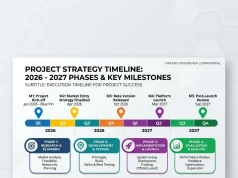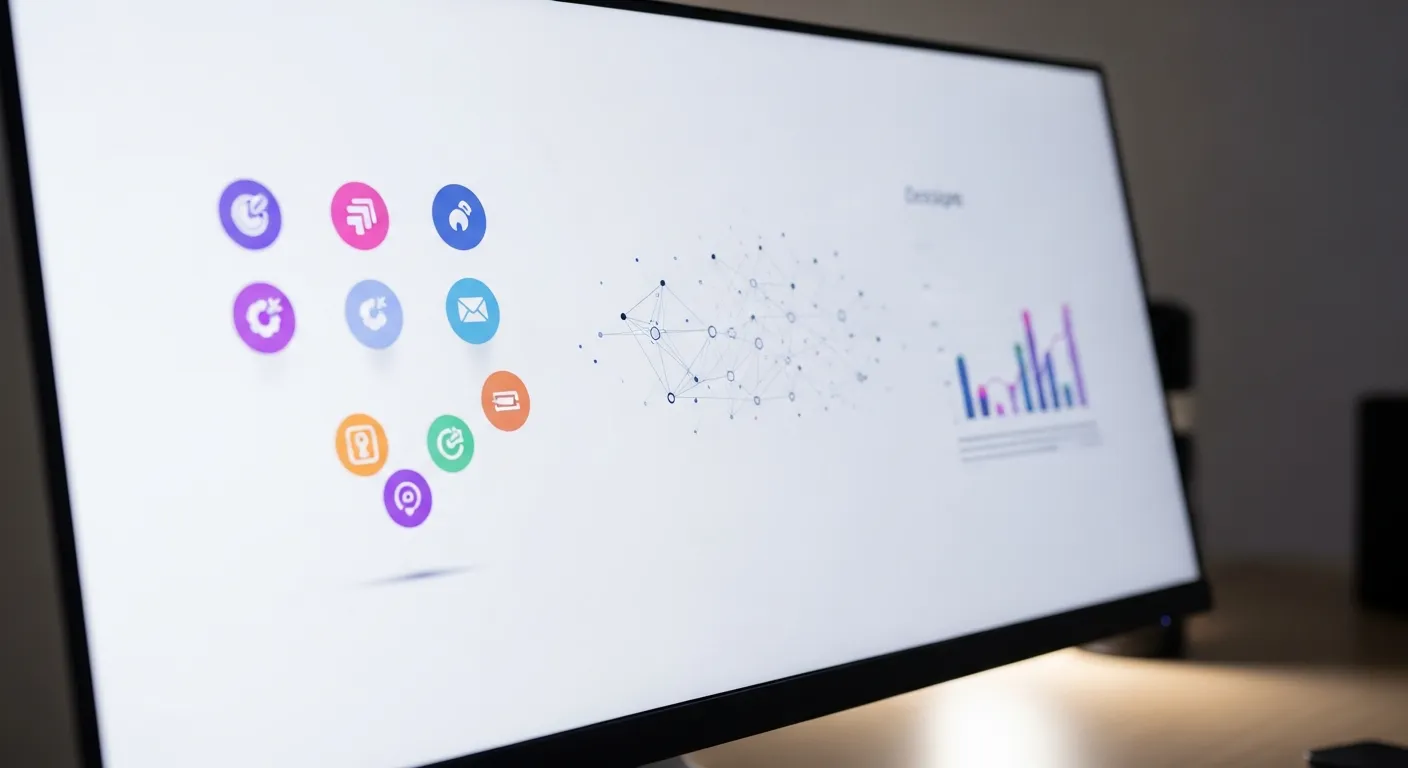
Interactive slide design enhances engagement by using animations, clickable elements, storytelling, and visuals to make presentations more dynamic, memorable, and audience-focused, improving communication, understanding, and retention effectively.
Interactive slide design is a modern approach to creating presentations that actively engage the audience rather than relying on static content. Unlike traditional slides filled with text, interactive presentations use animations, clickable elements, transitions, embedded media, quizzes, and storytelling techniques to keep viewers involved throughout the session. This design style helps presenters communicate complex ideas more clearly and makes information easier to understand and remember. In today’s digital and professional environments, audience attention is limited, so interactivity plays a crucial role in boosting engagement and retention. Whether in business meetings, classrooms, marketing pitches, or online webinars, interactive slides create a more immersive experience that encourages participation and feedback. By combining visuals, motion, and user-driven navigation, presenters can transform ordinary presentations into powerful communication tools. Ultimately, interactive slide design not only improves audience engagement but also increases the impact and effectiveness of the message being delivered.
This comprehensive guide explores the core elements of interactive slide design. You will discover actionable strategies, powerful tools, and expert techniques to maximize engagement, along with common pitfalls to avoid when crafting your next presentation.
The Power of Interactive Slide Design
Audiences quickly lose focus when forced to stare at walls of text. You need a strategy that pulls them into the conversation. Interactive slide design shifts the dynamic from a one-way lecture to a two-way dialogue. By incorporating clickable elements, live polls, and non-linear navigation, you empower your audience to participate in the journey.
When you apply these techniques, retention rates soar. People remember what they interact with much better than what they passively consume. This approach builds a stronger connection between you and your viewers, ensuring your core message resonates long after the meeting ends.
Understanding Search Intent and Audience Needs
Before diving into the creative process, you must understand what your audience actually wants. Most people attend presentations to solve a problem or learn a new skill. If your interactive slide design aligns with their specific goals, you will capture their attention instantly.
We recommend surveying your audience beforehand when possible. Use that data to shape your content. If you know their pain points, you can design interactive scenarios that allow them to choose the path most relevant to their needs.
Core Elements of Engaging Presentations
To master interactive slide design, you must understand the foundational elements that make it work. It is not just about adding flashy animations. It is about the strategic placement of interactive features that add real value to the viewer’s experience.
Non-Linear Navigation
Traditional presentations force you to move from slide one to slide two in a rigid sequence. A modern interactive slide design allows for non-linear storytelling. You can create a main menu slide with clickable icons that branch out to different topics. If an audience member asks a specific question, you can jump directly to the relevant data without clicking through twenty unrelated slides. This flexibility makes your presentation feel like a custom conversation rather than a rehearsed speech.
Live Polling and Q&A Integration
Nothing wakes up a room faster than asking for their opinion and displaying the results in real-time. Integrating live polls directly into your slides forces the audience to pull out their phones and engage. You can use this data to pivot your talking points based on their responses. Real-time Q&A boards also allow shy audience members to submit questions anonymously, ensuring you address the group’s actual concerns.
Clickable Data Visualizations
Static charts often confuse viewers. Instead, use interactive slide design principles to build clickable data visualizations. Allow your audience to hover over a graph to see specific numbers or click a pie chart sector to reveal a detailed breakdown. This technique helps you present complex data without overwhelming the slide with text.
Top Tools for Interactive Slide Design

Choosing the right software can make or break your presentation. While standard tools offer basic features, specialized platforms take interactive slide design to the next level.
Platform Comparison Table
|
Tool Name |
Key Interactive Feature |
Best Use Case |
Learning Curve |
|---|---|---|---|
|
Prezi |
Zoomable, non-linear canvas |
Storytelling and dynamic flow |
Medium |
|
Mentimeter |
Live polling and quizzes |
Audience feedback and workshops |
Low |
|
Canva |
Embedded multimedia and links |
Quick, visually stunning decks |
Low |
|
Visme |
Clickable data visualizations |
Business reports and analytics |
Medium |
|
PowerPoint |
Hyperlinked navigation menus |
Corporate environments |
Low to Medium |
Select the tool that best aligns with your presentation goals. If you want high audience participation, Mentimeter is excellent. If you need to explain complex data sets, Visme provides superior visualization options.
Step-by-Step Guide to Crafting Your Deck
Building an engaging presentation requires a systematic approach. Follow these steps to ensure your interactive slide design hits the mark every time.
Step 1: Map Out Your User Journey
Before opening your design software, grab a pen and paper. Sketch out the flow of your presentation. Identify the moments where audience attention typically dips. These are the exact spots where you should introduce an interactive element, like a quiz or a clickable case study.
Step 2: Build a Master Navigation Menu
Create a visual dashboard early in your presentation. Use icons or short text blocks that act as buttons. Hyperlink these buttons to specific sections of your deck. This allows you to ask the audience, “Which topic should we tackle first?” and instantly jump to their preference.
Step 3: Design Clean, Scannable Layouts
Interactive elements fail if the slide is cluttered. Maintain ample white space. Use high-contrast colors for clickable buttons so they stand out immediately. Keep your text to a maximum of three to four short sentences per slide. Your spoken words should carry the narrative, while the slide provides the interactive anchor.
Step 4: Embed Multimedia Strategically
Videos and audio clips can enhance engagement, but only if used correctly. Do not embed a ten-minute video. Instead, use short, punchy clips that illustrate a specific point. Set the video to play only when clicked, giving you control over the timing and flow of the presentation.
Pro Tips for Maximum Impact
We have gathered insights from top presentation experts to help you elevate your interactive slide design.
- Implement Micro-Interactions: You do not always need a massive live poll. Sometimes, a simple hover effect that reveals a hidden piece of text keeps the audience curious and focused.
- Use High-Quality Assets: Interactive elements look cheap if paired with low-resolution images. Always use crisp, professional graphics.
- Test on Multiple Devices: An interactive button that works on your laptop might be too small to tap on a tablet. Always test your interactive slide design on the exact hardware you will use on presentation day.
- Have a Backup Plan: Wi-Fi can fail. If your interactive slide design relies heavily on live web elements, always have a static PDF backup ready to go so your presentation does not stall.
Common Mistakes to Avoid

Even seasoned professionals stumble when implementing new techniques. Avoid these frequent errors to keep your presentation running smoothly.
Overloading the Slides
The biggest mistake you can make in interactive slide design is adding too much interactivity. If every single element on the screen spins, bounces, or requires a click, the audience will feel overwhelmed. Use interactivity to highlight key concepts, not as a decorative gimmick.
Ignoring Accessibility
If you use color-coded interactive buttons, ensure you also use text labels for color-blind audience members. Make sure your clickable areas are large enough to be easily selected, and ensure your fonts are legible from the back of the room.
Forgetting the Narrative
Interactivity should serve the story, not replace it. Do not let the novelty of a clickable chart distract from the core message you are trying to deliver. Always ask yourself if a specific interactive element moves the narrative forward or just acts as a distraction.
Semantic SEO and Contextual Relevance

To ensure your interactive slide design reaches the widest possible audience, you must optimize the content surrounding it. Search engines look for contextual clues to understand your topic. Discussing related concepts like visual storytelling, audience retention metrics, and multimedia integration signals high topical authority.
When creating content about presentations, linking to authoritative sources on cognitive load theory or graphic design principles builds credibility. Internal linking to your own related articles on public speaking or data visualization further strengthens your site’s architecture.
Measuring Engagement Success
How do you know if your interactive slide design actually worked? You need to measure the results. Many modern presentation tools offer backend analytics. You can see exactly how many people participated in your live polls or how much time you spent on a specific non-linear branch.
Use this data to refine your next presentation. If you notice that no one clicked on a specific interactive case study, you know to either remove it or make the button more prominent next time. Continuous improvement is the key to mastering slide engagement.
Conclusion
Mastering interactive slide design is the most effective way to elevate your presentations and guarantee audience participation. By implementing non-linear navigation, live polling, and clean visual layouts, you transform passive listeners into active participants. Start applying these strategies today to build memorable, high-impact presentations that drive real results.
Frequently Asked Questions
What is interactive slide design?
It is a method of creating presentations that allows the presenter or the audience to actively engage with the content. This includes using clickable menus, non-linear navigation, embedded quizzes, and live data polling to create a dynamic two-way experience rather than a static lecture.
Why is interactive slide design important for businesses?
It drastically improves audience retention and engagement. When pitching to clients or training employees, keeping their attention is critical. Interactive elements prevent viewers from zoning out, ensuring your key business metrics and messages are actually absorbed and remembered.
What are the best tools for creating these presentations?
Several platforms excel in this area. Mentimeter is perfect for live polling. Prezi offers incredible non-linear storytelling through its zoomable canvas. Visme is great for clickable data, and Canva provides an easy-to-use interface for adding multimedia and hyperlinks.
Can I make a PowerPoint presentation interactive?
Yes, you absolutely can. PowerPoint allows you to create hyperlinks between different slides, enabling a non-linear flow. You can also use trigger animations to reveal text or images only when a specific shape is clicked, creating a highly engaging experience.
How much interactivity is too much?
You have crossed the line when the interactivity distracts from the core message. If your audience is focusing more on the flashy animations or complex clicking required than on the data you are presenting, you need to scale back. Use interactive elements strategically to highlight key points.
Do interactive presentations require an internet connection?
It depends on the features you use. Live polling and real-time Q&A boards always require internet access for both you and the audience. However, hyperlinked navigation, clickable charts, and triggered animations built natively in PowerPoint or Keynote work perfectly offline.
How do I measure the success of an interactive presentation?
Look at audience participation rates. If you run a live poll and 90% of the room responds, your engagement is high. Additionally, track the quality of questions asked during Q&A and use backend analytics provided by platforms like Mentimeter to see how users interacted with your deck.
Are interactive slides accessible for all users?
They can be, but you must design them intentionally. Ensure high color contrast for clickable elements. Use large fonts. Add alternative text to images if sharing the file digitally, and do not rely solely on color to indicate where a user should click.
How do I transition from traditional slides to interactive ones?
Start small. Do not try to rebuild your entire deck overnight. Begin by adding a single live poll at the beginning of your presentation to break the ice. For your next presentation, try adding a clickable navigation menu. Gradually introduce more elements as you get comfortable.
Does interactive slide design work for remote presentations?
It works incredibly well for remote presentations. In fact, it is often more necessary on Zoom or Teams, where audience members are easily distracted by their home environments. Live quizzes and clickable elements pull remote workers back into the meeting and force active participation.